


Quick Summary
- Yapp announces the retirement of Crowd Pics and News Feed pages and explains the transition for users.
- The post helps app creators understand product changes, feature direction, and what to do next inside their apps.
- Yapp customers using those legacy page types will benefit most from this update.
We hear all the time how much people love sharing photos and interacting with each other with Yapp. We also hear how critical Yapp is for communicating important updates to attendees. We’ve been thinking a lot about these two aspects of our product and we have big plans! Before we can roll out these bigger changes, we feel it’s important to tidy up the product. To learn more about the changes that are coming, read on.
Consolidating our social pages
You may have wondered what the difference was between our News Feed, Crowd Pics and Social Feed pages are. Don’t worry, you’re not the only one! Those pages came about over the years to achieve different goals. Yet, as the product has evolved, these pages started to share a lot of the same functionality. That’s why we’re consolidating these pages into the new, super-powered Social Feed page. Here’s what’s in store:


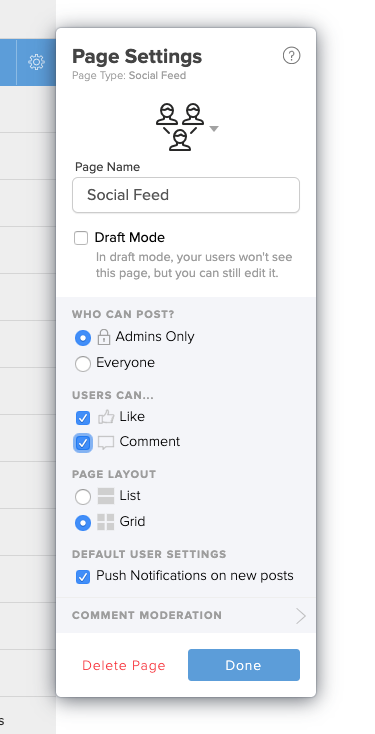
Grid view
Our Crowd Pics page made it easy for users to upload photos and see them in a beautiful grid view. You can now do that with any Social Feed page! Open the page settings, change the layout to Grid, and hit publish. Now your users will see a photo-centric layout.
Admin-only posting
Many of our customers used the News Feed page to send important updates and alerts to attendees. You can now change the permissions on a Social Feed page that only allows App admins to post. This eliminates the need for a separate News Feed page.
Controlling user interaction
Ever wish you could disable comments on your Social Feed page and allow likes? What if you think “liking” is annoying, but you want to allow folks to respond with thoughtful comments? You can now turn off the ability to like or comment on any Social Feed page.
We have also made other improvements, including better push notification settings and design.
“Neat. The Social Feed page is receiving new features. What about my beloved Crowd Pics/News Feed page?”
In the coming weeks, we will be retiring our Crowd Pics and News Feed pages. This will involve migrating all existing users over to configured Social Feed pages. If you used a News Feed page for announcements, it will become a Social Feed page. The settings applied will be “admin-only” with disabled Likes and Comments.
If you used a Crowd Pics page, it will become a Social Feed page with Grid View enabled and disabled Likes & Comments. This should be a seamless and invisible transition for you. The only difference is that you will have access to all the features the Social Feed page has to offer. Want to enable Liking on what used to be your Crowd Pics page? Enable it and then click “publish”.
Despite the retirement of the old page types, when you go to add a new page to your app, you’ll see the same icons as before. The Crowd Pics icon will create a Social Feed page with the appropriate settings. We’ve renamed News Feed to Announcements, but the idea is the same as before.
Future plans for the Social Feed page
As we mentioned earlier, we have some big plans to improve the Social Feed page. Now that we have tidied up these page types, we can start to roll out some shiny, new features! Here are the next releases two on our roadmap:
- Desktop Posting: We will be adding the ability to post to your Social Feed pages from the desktop. No need to go thumb-crazy on your phone screen if you have your laptop handy.
- Scheduling Posts: We will be enabling the ability to add social posts in advance and send them out at a set time. This will only be accessible through our desktop editor.
We know many of you have been asking for these features. That’s why we’re doing our best to continue to support the feature folks have come to know and love. Further, this allows us to create new and interesting features that we hope you’ll find useful.
If you have any feedback for us, we’d love to hear it! What features are most important to you? Do you have reactions or ideas to all that we talked about above? Please share them here:


