Tag Archives: tips and tricks

Tips & Tricks: Use Canva to Quickly Design Custom Covers

Canva - Custom Cover
  • Yapp shows how Canva can help users create custom covers for a more polished app design.
  • Better cover design helps apps feel more branded, attractive, and event-ready without needing advanced design skills.
  • App creators who want stronger visual branding will benefit most from these tips.

Canva is a tool we’ve raved about a few times on our blog. It’s a super-simple design tool for any skill level. You can create from templated sizes, or you can work on your own canvas.

After using Canva for a while, we realized it was perfect for our Plus users creating custom covers.

When you first head to Canva.com and create an account, you’ll see the “Create a Design” section. In the upper right, click the “Use custom dimensions” link to get rolling on your custom cover.

Use Custom Dimensions - Custom Cover

Then, put in our page dimensions, which are 640 x 920 pixels.

Pixels - Custom Cover

Once your canvas is ready, you can use Canva’s design tools to make it look just the way you want. They have thousands of stock photo images that cost only $1, tons of cool text designs (some are free, some have a small cost), shapes, colors, and other editing tools.

Download your finished design as an image, then upload it easily into our editor. Match your inside colors to your custom cover and you’ll have the best looking app around.

Canva is a free tool with on-site purchases and upgrades (for stock photos and design elements). Soon, the site will be launching Canva for work teams — the perfect supplement for our Team Plus plan.

Tips & Tricks: Take RSVPs Digital

RSVP
  • Yapp shows how to collect RSVPs digitally instead of relying on manual tracking.
  • A digital RSVP workflow saves time, keeps responses organized, and reduces event planning friction.
  • Event organizers who want a simpler registration and response process will benefit most from this tip.

Hosting an event is an organizational bear in and of itself. Once you start inviting people, the madness truly begins. And, because there’s a BIG difference in planning for 40 and for 400, the RSVP was born.

While Yapp doesn’t yet have a dedicated RSVP page (it’s in the works!), there are a few ways to get a solid headcount from your attendees.

Many users will create surveys or forms for their attendees to respond to using Google Forms or a service like Survey Monkey, then include the sharing link within the app somewhere. Our invitation page (pictured above) is a great spot for this. If you’re creating a form, keep it simple — name, yes attending or no, not attending, and an email or phone number, in case you want to get in touch.

Others will instead put an email address — either dedicated to receiving RSVPs or personal — on a page like this, asking guests to simply tap and email their attendance plans.

Just need a head count and not a list of names? Use our poll page! Users can easily respond ‘Yes’ that they’re coming or ‘No’ that they’re missing out, and you’ll be able to easily see the breakdown from your app or from the editor.

The News Feed is also a good way to gather RSVPs. Once the app is downloaded, send out a push notification asking your users to post in their plans to attend the event.

All the while, keep an ear out for an announcement that RSVP capabilities are available within Yapp!

Tips & Tricks: Getting the Perfect Image Size

  • Yapp explains how to choose the right image size so app visuals look cleaner and load properly.
  • Better image sizing improves presentation and helps content appear more polished across the app.
  • App creators working with custom visuals will benefit most from this tip.

When you’re adding an image to the cover page of your Yapp, we know you want it to look good. That main photo is the first thing that users see when they open Yapp on their phone’s, and it should look as good as you intended it to.

tip9-RESIZE

To get the perfect fit on your cover image, People profile photos, or gallery images, make sure your images are square. We recommend that they be at least 500×500 pixels.

If your image or logo is already a square, it will fit proportionally in your Yapp. If it looks blurry, make sure it isn’t too small — anything less than 1.5×1.5 inches probably is.

If you’re dealing with a rectangular image, you’ll have to do some resizing. You can’t currently do that directly in Yapp’s editor, but we do have some easy solutions for you if you’re not a Photoshop pro. To do this, you can’t use Word or Paint — these programs don’t change the actual image, just the current iteration of that image within the program, and won’t be helpful.

To make sure that your photo doesn’t stretch or squish, you’ll want to edit what’s called the photo canvas — the area that your photo sits on. If you think of your logo as a cut-out or sticker, you want the piece of paper that you put it on to be a square.

If you have Photoshop, you can use that to edit your canvas. They also offer a 30-day free trial, if you want to try out the program before purchasing. We also recommend the free online editing tool Pixlr. With either of these tools: open your image, click Image in the top toolbar, click Canvas Size, and resize the canvas so that the smaller side is equal to the longer side. Then save and upload to Yapp.

For a visual look at resizing via Pixlr, we’ve put together a quick tutorial to help out.

Tips & Tricks: Sell Tickets and Register Attendees

  • Yapp shares tips for handling tickets and registration more smoothly through app-friendly workflows.
  • Better registration setup helps reduce friction and makes event access easier for organizers and attendees.
  • Event planners managing registration and ticket flow will benefit most from these tips.

Getting RSVPs, registering attendees, and selling tickets is a stress factor of any event. While your Yapp makes it simple to keep organized during the event, we can now be even more helpful in the planning stages.

tip5-tickets

If you use Eventbrite, the popular free event registration and ticketing platform, you can now bring that listing info to your app. Add the tickets template page to your app, then log in with your Eventbrite account info. Choose which event you want to import and, voila, all of the information will import in.

You can even replace an ‘Invitation’ or ‘Information’ page with a tickets page — many of the fields are the same, just filled with the information you’ve already added to your Eventbrite listing. Once you pull in the data, you can edit it to show just what you’d like. Maybe you want a little less that what was included on your ticketing page, or maybe a bit more. Click ‘Edit’ in the top right corner of the page on the editor and you can make changes just like you would to any other Yapp page.

If you’re not the owner of an event on Eventbrite, never fear! Once you create an account or log in, you can simple paste in a link to an event listing and it will pull in the same information.

When a user clicks ‘Buy Now!’ s/he will be redirected to either Eventbrite on a mobile browser, or the Eventbrite app, if it’s installed. There, they can go through a secure payment or registration process.

Tips & Tricks for Creating a Stellar Event App

tip6-EVENT
  • Yapp shares practical tips and tricks for getting more value from an event app.
  • Better setup and smarter feature use help improve both organizer workflow and attendee experience.
  • Event organizers who want stronger app results without extra complexity will benefit most from these tips.

Yapp is perfect for events of all shapes and sizes. From birthday parties to fall break trips to conferences, you can pick and choose your template pages to fit your needs.

Here’s what you’ll need in your Yapp:

  • Invitation: Here’s where you’ll put all of your basic event information. If your event is one day, invitation is perfect. If it last’s longer, use Information instead. And, if you’re using Eventbrite for ticketing or registration, replace this page with the new Tickets page, which can display all of your event info as well as link to sell tickets. This page is a must-have for most events; it holds all the vital details, including the location’s address which links directly to Google (or Apple) maps.
  • Schedule: If you’re packing in workshops, conference sessions, or activities, this will help you keep track of everything. Linked addresses can go in here as well, so there’s no getting lost from one thing to the next. If you’re running a lot of different sessions or activities, or have a conference with multiple tracks, get excited — we have a multi-track schedule page coming soon as a premium add-on.
  • People: Use this to replace those expensive bio books that end up collecting dust as soon as the day is over, conference organizers. Ask your speakers, organizers, or attendees to put their information into a spreadsheet (formatted like our upload template) and then send it our way — we’ll upload all of those bios into your Yapp quickly and inexpensively. This page is also perfect for showcasing sponsors*; include their logos, company names, bios and websites as resources for attendees. If your event is less formal, this is a great page to store contact information so that the group or specific members can easily be reached.
  • News Feed: We’ve featured our News Feed a few times in Tips & Tricks. With it, you can send push notifications, which makes it great for event updates and announcements. But, the page also works like a group chat, which means if your event is a vacation with friends, you can use it to plan travel arrangements and keep track of who owes who money.
  • Crowd Pics: Sharing photos is fun whether it’s with friends, family or co-workers. Anyone with your Yapp can post photos into this page, making a collaborative commemoration space. It has also been used for scavenger hunts, and all the photos can be downloaded afterward to create albums for event guests.

*For bigger sponsors you want to highlight, try adding their logo to a custom cover page. Email us for info!

Depending on what type of event you’re creating for, our other template pages may also be helpful for organizing. The above are the staples, but there’s always room for creativity. Then, once you’ve published your app, it’s time to share and promote. Check out our post full of sharing tips, and let us know what creative ways you’ve used to promote your event apps!

Tips & Tricks: Easily Store Your PDFs and Documents

  • Yapp shows how to store PDF files in the app so important documents stay easy to access.
  • Centralized file storage helps reduce confusion and gives users one place to find needed resources.
  • Event organizers and internal teams sharing documents will benefit most from this tip.

Have a lot of documents to share with your users? There are a few ways to view them in Yapp before we develop a dedicated page for viewing.

The best way we recommend sharing your documents with your users is through sharing links. Upload the PDFs/documents you want to share to Google Drive or Dropbox. Then, take the sharing links generated by Google or Dropbox and paste them into a Simple Text page (like we show in the image above). Sometimes, those links are really long and ugly, so try using a shortener like bit.ly to get a nice, clean look.

This is our favorite way because it keeps your Yapp uncluttered and lets your users download the documents to their phone or iPad if they choose. If your documents pertain to a certain item on the schedule or people page, you can also paste the link into the description section of the event or person entry.

You can also save your documents as image files and upload them into a gallery page. This shows all the documents in thumbnail and can be enlarged to be read.  However, with this method, each page has to be saved as a separate image and can’t be downloaded, making for a long process for you and hard to read documents for your users.

Have other tips or ideas about sharing PDF and other document files? Let us know!

Tips & Tricks: Notifications Keep Your Users Engaged

  • Yapp shares tips for using notifications to keep users engaged without overwhelming them.
  • Smarter notification strategy helps improve attention, participation, and overall app value.
  • App creators and event teams using push notifications will benefit most from these tips.

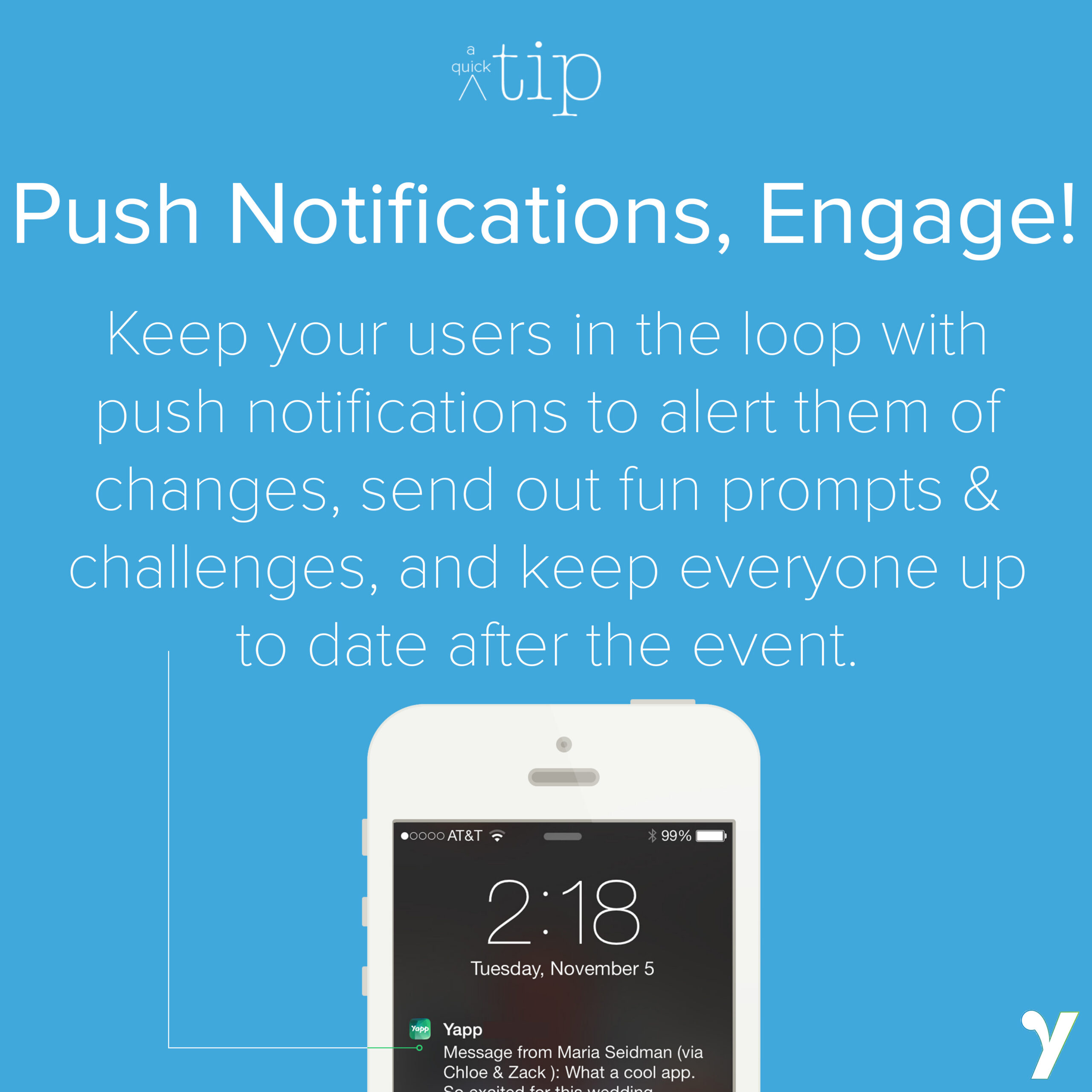
The fun doesn’t stop after you’ve created and shared your Yapp. Now that you have people using it, keep them coming back for more!

Use the News Feed page to send out announcements throughout your use of the app, from “The keynote starts in 5 minutes!” to “There are 3 grab bags left at the door — come and get them!”

People have also made the News Feed into a collaborative game page. Want to have a scavenger hunt? Send out clues via News Feed push notification and have players respond either with a statement or photo in response within the app.

By filling your app with information beyond what they could get in a paper program. Include links, collaborative photo and text pages, use push notifications, and post poll questions, the app becomes a more fun and functional necessity. Plus, if you keep a laptop or tablet handy, you can edit and refresh pages throughout the day. Using this as a way to reveal speakers, information, or schedule events is a great way to make people check page; you can also add links to download the slideshows after presentations are finished!

If you’re looking for a page purley for Announcements, we have a premium admin-only news feed available. Just send us an email if you’re interested!

How to Make the Most Out of an App for Prom

Quick Summary

  • Yapp shows how a custom app can be used to organize and share prom details more easily.
  • Centralized schedules, updates, and event info help make prom planning feel more organized and fun.
  • Students, schools, and organizers planning prom events will benefit most from this idea.

Friday, we told you about 5 apps to download for your prom day/night/weekend. While those will help with your shopping, grooming, arriving and partying needs, we’ve got a few tips and tricks for making your own awesome app to prep, party, and party some more. Continue reading →

Tips & Tricks: A Super App for Gameday in 3 Steps

Super Bowl
  • Yapp shares three practical tips for creating your own app around a Super Bowl or sports-related event.
  • The post shows how a themed app can organize content and create a more engaging shared experience.
  • Sports groups and event planners looking for seasonal app inspiration will benefit most from these tips.

Hey, did you know there’s a football game on Sunday?

The XLVIII-th Super Bowl (that’s 48th in non-Roman terms) hits MetLife stadium this weekend and, if you’re not one of the lucky 80,000+ in attendance, chances are you’re having a much warmer viewing on your couch with friends and snacks. Some will be more into the snacks, others more into the game.

We’ve got a few tips and tricks to put together the perfect app for everyone at the party.

Continue reading →